How to Analyze a WHEA report
Table of Contents
What is WHEA?
WHEA stands for Windows Hardware Error Architecture. It is a framework in Windows that allows the OS (in this case Windows) handle hardware errors, whether they are caused by faulty firmware or faulty hardware. It has the capability to detect, report and even in some cases recover from hardware malfunctions (an example of which is thoroughly discussed in how to analyze a CMCI WHEA error).
The WHEA was introduced in November 2006 with the release of Windows Vista to properly standardize a unified mechanism to handle hardware errors. Previously Windows used to utilize platform specific mechanisms to detect and report hardware errors, some of which were not even enforced by vendors and thus when those components did fail, the only way to troubleshoot was via breadboarding.
WHEA error analysis
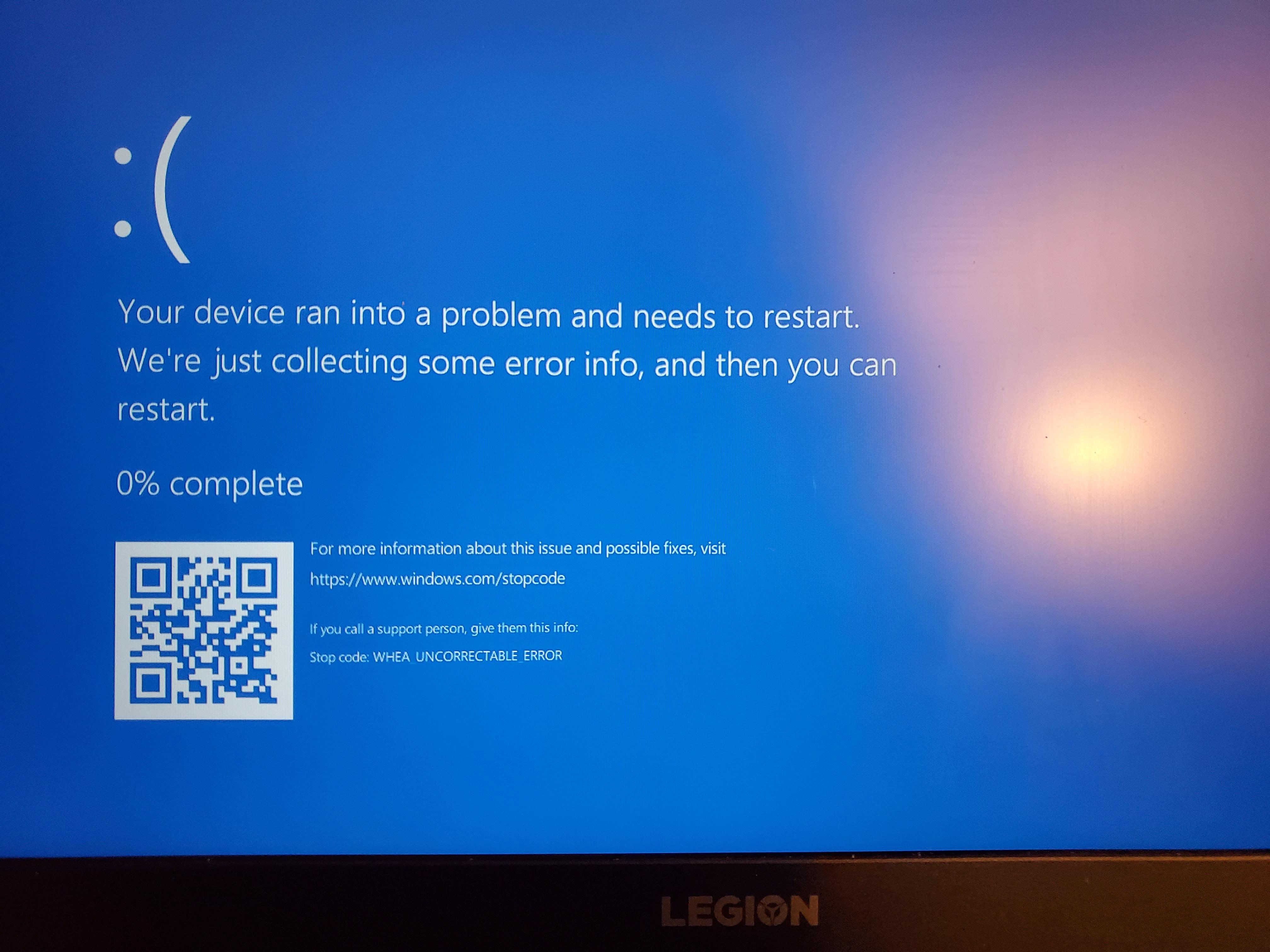
WHEA errors can manifest itself in numerous ways. The way which most people usually encounter a WHEA error (or see it for the first time) usually is in a BSOD event (Blue Screen of Death). Such errors occur because the system threw a hardware error so severe, the stability of the system itself is compromised and the OS crashes, presenting the user with a following error screen:
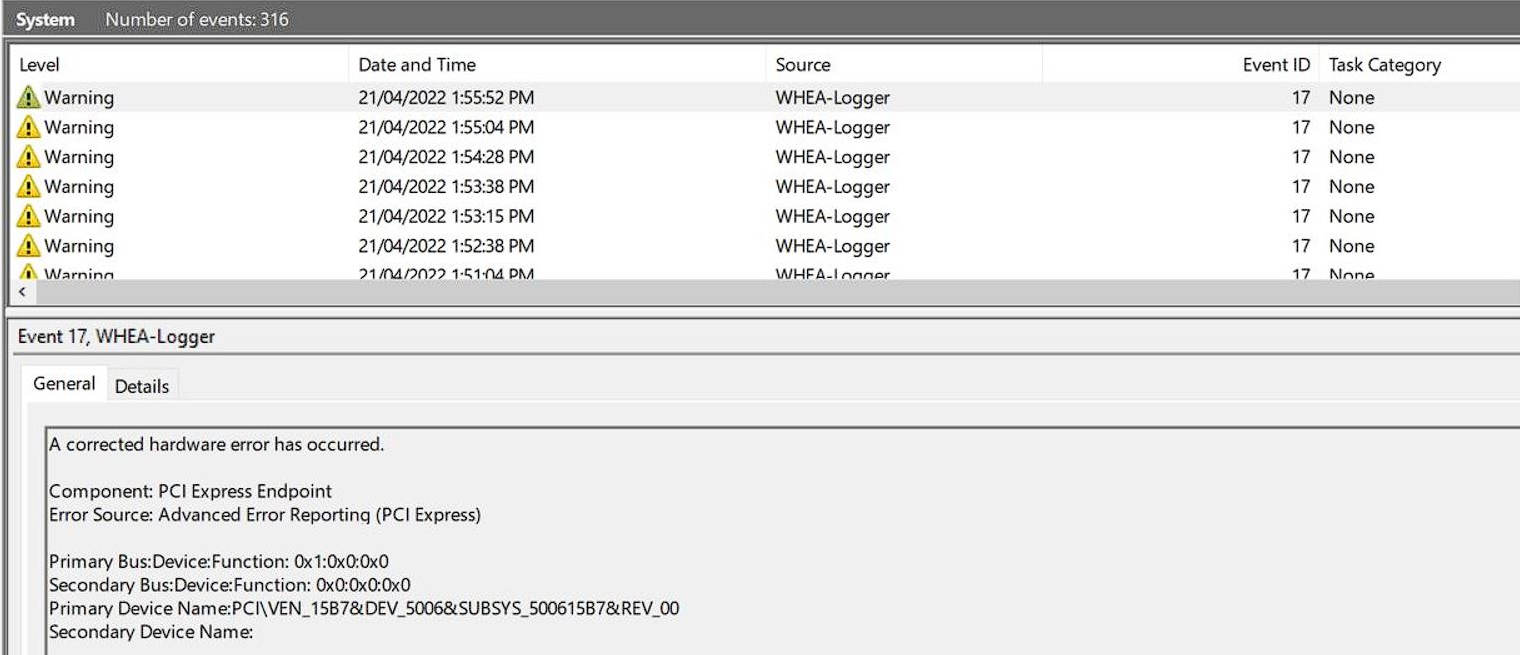
Other times, most users may not even be aware that there are WHEA errors being reported by the system until it manifests itself in a different way, such as WiFi intermittently cutting out due to a failing WiFi adapter, or maybe the GPU glitching and presenting artifacts on screen. Such errors aren’t system critical usually (unless they break the driver in such a way which errors out kernel space) and therefore BSODs won’t occur to notify the user that a hardware is faulty. The only way to find these errors is by going through Event Viewer, where all non-critical WHEA errors or “corrected” WHEA errors are reported.
For the purposes of this guide, we will be analyzing WHEA errors via a tool known as Specify. Specify is a snapshot viewer, as in it collects data from the system it’s running on and then passes all this data to a website, spec-ify.com, which presents data in a structured way allowing users to view the status of their machines, or aid tech support agents in analyzing systems and figuring out what’s wrong with them or general checkup.
Notably speaking, it also grabs important logs from EventViewer particularly, including unsafe shutdowns and WHEA error reports, be it PCIe WHEA errors, or general WHEA errors (including ones causing BSODs too).
In the case of a WHEA error causing a BSOD, almost all details of the error will usually be within the minidump (
.dmp) files generated by the system, in addition to creating a report in Specify. We recommend analyzing both to properly diagnose an issue. To analyze minidumps, please refer to the BSOD guide.
Classifications
WHEA errors can be classified into two catagories:
- Corrected Errors: These are hardware errors that the system’s hardware or firmware has already corrected by the time the OS is notified. A corrected WHEA error will be reported then.
- Uncorrected Errors: These are errors where the system’s firmware or hardware cannot correct, and are further classified into two types:
- Fatal Errors: These are unrecoverable errors which causes system instability, often resulting in a BSOD.
- Non-Fatal Errors: These are errors that the OS tries to fix directly (not the firmware/hardware), and if able to, a corrected WHEA report will be written up. If unable, the system will still be able to function without that hardware if the errenous hardware does not affect the stability of the system.
WHEA error sections
When you expand a WHEA error section, you are met with 3 sections:
- Error Header
- Error Descriptors
- Error Packets
Each section contains more information in particular about what potentially caused this error to show up.
Error Header
The error header contains information which tells the OS and any logging tools how to interpret the rest of the data. The important section to understand here are:
- Severity: Classification of the error’s impact (e.g., Fatal, Corrected, Informational).
- Timestamp: UTC time when the error was logged.
- Notify Type: GUID describing how the record was delivered (e.g., DEVICE_DRIVER_NOTIFY_TYPE_GUID for driver-reported faults).
The most important part would be Severity and Notify Type. Notify Type can tell you more about what form of error was encountered by the system. There are 7 different standard notification types:
CMC_NOTIFY_TYPE_GUID: Explained below in “Processor errors”.CPE_NOTIFY_TYPE_GUID: Indicates a platform-level error, external to the CPU, that was corrected in hardware or firmware. Informs Windows that the platform took care of the error and no software intervention is needed.MCE_NOTIFY_TYPE_GUID: Explained below in “Processor errors”.PCIe_NOTIFY_TYPE_GUID: Used when a device or root port reports an Advanced Error Reporting (AER) event via PCIe, corrected or uncorrected. See more below in “PCI Express/PCIe errors”.INIT_NOTIFY_TYPE_GUID: Generated very early in the boot process, often by firmware or pre-OS runtime. Because it precedes the full Windows kernel, these records are held in firmware or early logs and replayed once the OS is up. See more below in “Firmware errors”.NMI_NOTIFY_TYPE_GUID: Fires when hardware issues a nonmaskable interrupt line to signal a critical fault. Always higher priority than machine checks; the OS treats it as nonrecoverable unless specific drivers handle it, and its logged separately so you can distinguish board-level NMI events from CPU-centric MCEs. See more below in “Non-Maskable Interrupt (NMI)”.BOOT_NOTIFY_TYPE_GUID: Similar to INIT, but specifically for errors that occur during the OS boot loader or very early kernel initialization, and it captures issues that neither firmware nor drivers could clear, such as corrupt PE headers in critical drivers or early memory map inconsistencies. Windows may expose these as “boot diagnostics” entries in the Event Log to aid troubleshooting startup failures. See more below in “Firmware errors”.
Error Descriptors
The WHEA_ERROR_RECORD_SECTION_DESCRIPTOR is a structure that contain crucial information about the associated hardware error data, including its type, severity, and other identifying characteristics. This is the meat and potatoes of the WHEA error section, as majority of the time it can tell you exactly what went wrong with the device and how Windows has handled it, be it via correction such as Corrected Machine Check Interrupt (CMCI) or a crash in Windows.
Error Packets
This is the raw data and text for the whole error packet containing the error header, error descriptor, and so on. This can be a bit daunting to read on first glance, but know that it’s split up into neat sections that can enable a user to manually review the WHEA error section directly, especially if error descriptors point to something like a PCIe device but doesn’t explicitly mention what device it is that’s causing the issue.
I have explained how to read the error packets in WHEA-Analysis - Corrected Machine Check Interrupt - Error Descriptors which you can refer to in order to read the error packets properly, but for devices normally you can also read the ASCII translation of the error descriptors on the side without having to fully analyze it, which normally will contain the name of the faulting device usually.
Types
There are numerous types of WHEA error types, of which the full examples of all different types can be found in Microsoft documentation (good luck). This goes into deep details, but for our purposes, that will serve as further reading.
Instead we will focus on common types of WHEA errors you may encounter, what they can mean, and how you can quickly diagnose them, including further testing for further diagnosis. We will cover the following:
- Processor errors (MCA, CMCI, CMC)
- PCI Express (PCIe) errors
- Memory errors
- Platform Hardware errors (NMI, Firmware, SOC)
- Device Driver errors
- Generic Hardware errors
Processor errors (MCA, CMCI, CMC)
Processor/CPU errors typically are indicative of an issue with the CPU, or its interaction with other components. Simply put, its where the processor is not behaving as expected and therefore is throwing out errenous commands/results. This can be caused by a wide range of issues, such as:
- Faulty CPU: The CPU itself is defective or experiencing internal faults. This normally is impossible to fix and requires claiming warranty (if available).
- Power delivery issues: The CPU may not be receiving correct voltage or is lacking power delivery from the motherboard, which can cause unintended behavior of the processor.
- RAM incompatibility/issues: Since RAM is utilized heavily by the CPU, faulty or incompatible RAM can lead to WHEA reports, especially parity or ECC errors.
- Overheating: If a CPU is reaching its thermal limit frequently due to insufficient cooling/airflow, you can encounter WHEA errors.
The errors this will produce include Machine Check Architecture (MCA) errors, Corrected Machine Check Interrupt (CMCI) errors, and Corrected Machine Checks (CMC), which report CPU internal failures such as cache hierarchy errors or execution errors.
Machine Check errors (MCA)
Machine Check Errors (MCE) are basically an uncorrected error that is sent to the error handler of Windows which basically means that there is an uncorrected, fatal hardware error inside the CPU (for example, an uncorrectable cache ECC or TLB fault). Most often this will result in an immediate exception or bugcheck in Windows, which usually is in the form of a blue Black Screen of Death (BSOD) on Windows, or Kernel Panic on Linux systems. These will usually result in dumps being generated, which are essentially error logs which users can then analyze so that post-mortem debugging can pinpoint which core (or part of the CPU) and which error register flagged the fault.
In Specify, MCEs are automatically translated and have their own section for easy analysis.
Corrected Machine Check Interrupt (CMCI)
CMCI stands for Corrected Machine Check Interrupt and is a mechanism used by the processor to report hardware errors to the operating system. Unlike an uncorrectable WHEA error, which causes a system crash, a corrected error means the system was able to fix the problem and continue running. This is why most CMCIs are not “Fatal” but “Warning”.
More information on how to decipher these can be found in WHEA-Analysis - Corrected Machine Check Interrupt.
Corrected Machine Checks (CMC)
A CMC is a machine check error that the CPU’s Machine Check Architecture (MCA) hardware detected and successfully recovered or corrected. It is delivered via the MCA recovery path, so the OS logs it as “corrected” without halting execution.
To translate CMCs, in case they do not provide a usual MCE in the error descriptors which are found in the error descriptors, you will have to resort to going through the error descriptors manually and deciphering the MCE yourself, and its the same exact way as how you would treat a normal CMCI error.
The main difference between a CMC and a CMCI is the fact that CMC is the generic ACPI-based signal for every corrected machine check event. It relies on the platform firmware or ACPI methods to funnel error reports into Windows via SCI/NMI. In contrast, CMCI is a hardware-accelerated path: once you program a threshold in the CPU registers, the processor takes care of counting correctable errors and only interrupts the OS when that threshold is hit. This reduces OS overhead and latency.
Memory errors
WHEA memory errors are WHEA-recorded RAM faults (corrected or uncorrected, single- or multi-bit, ECC/parity) captured inside a WHEA_MEMORY_ERROR_SECTION that includes error status, physical address, DIMM geometry, and platform IDs.
These will be in the form of WHEA_MEMORY_ERROR_SECTION (Memory error).
Multi-bit or uncorrectable events require immediate hardware isolation or replacement as it means the memory module (RAM) is failing usually. In order to identify the faulting module and reconfirm if it is in fact faulty, you may wish to run memtest86+.
PCI Express/PCIe errors
In Specify, they will appear in the “PCI WHEA Errors” section, underneath “Unexpected Shutdowns”. Here, you will see Vendor ID and Device ID, and often the device name (if identified). In the event it is not identified, search up Device ID and Vendor IDs in a PCI lookup tool, such as Device Hunt, or Linux Hardware (Linux Hardware often provides more information about the driver in question).
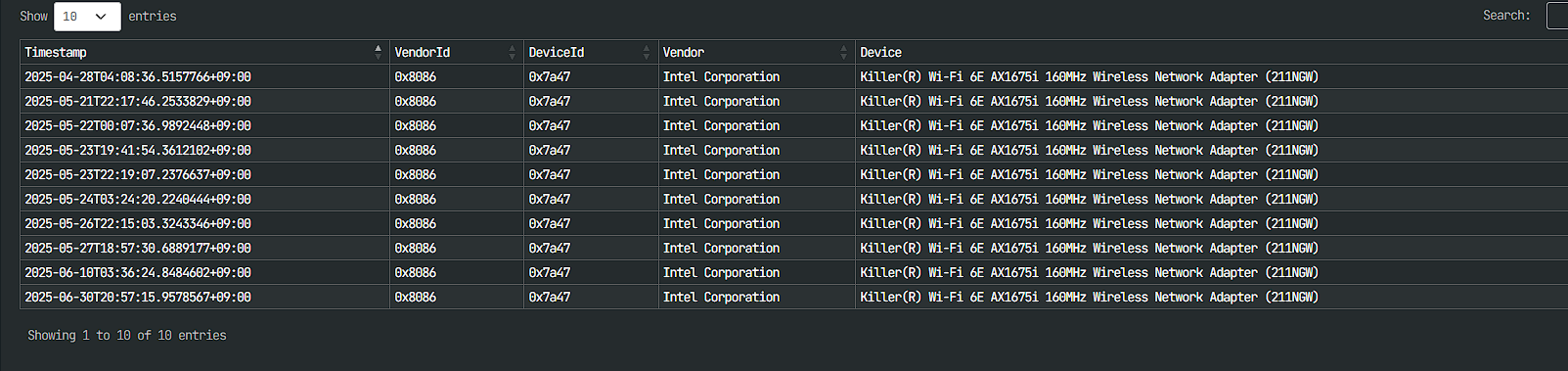
PCIe WHEA errors are hardware issues on a computer’s PCI Express bus that are logged by the Windows Hardware Error Architecture (WHEA). These can cause performance problems, system instability, and even Blue Screens of Death (BSODs). There can be numerous reasons for a PCIe WHEA event to occur, including:
- Outdated or corrupt drivers: Incorrect or outdated chipset or device drivers can cause communication errors on the PCIe bus.
- Fix is to update said drivers and hope for the best. Such drivers can be found from device specific product support pages.
- Overclocking configuration: Putting extra stress on your CPU or other components can lead to hardware failures that trigger WHEA errors, especially on a bad overclock configuration.
- The best way to diagnose this is to perform a CMOS reset to get back stock BIOS configurations and see if errors continue to occur.
- Outdated BIOS issues: Some motherboard BIOS versions may have bugs and issues which may cause WHEA errors, especially when dealing with newer hardware.
- Fixing this requires updating the BIOS via motherboard support page.
- Active State Power Management (ASPM): A feature that can cause instability in some systems by putting PCIe components into a low-power state.
- Fix is to ensure said device does not go into low power mode in power settings or device specific software. Alternatively, disable ASPM entirely as a troubleshooting step.
Example error types:
WHEA_AER_BRIDGE_DESCRIPTOR(PCIe Bridge error)WHEA_AER_ENDPOINT_DESCRIPTOR(PCIe Endpoint error)WHEA_AER_ROOTPORT_DESCRIPTOR(PCIe Root Port error)WHEA_PCIEXPRESS_ERROR_SECTION(PCI Express error)WHEA_PCIXBUS_ERROR_SECTION(PCI-X or PCI bus error)
Platform hardware errors (NMI, Firmware, SOC)
Platform hardware errors like Non-Maskable Interrupts (NMI) and firmware corruption failures are critical hardware-level issues that can lead to system instability, crashes, and unresponsiveness. These problems require immediate attention and differ from typical software bugs.
Non-Maskable Interrupt (NMI)
An NMI is a high-priority hardware interrupt that a CPU cannot ignore. NMIs are generated by hardware components to signal catastrophic errors that require immediate system shutdown or reboot to prevent further damage. The error type usually goes: WHEA_NMI_ERROR_SECTION, and the error header is NMI_NOTIFY_TYPE_GUID.
The frequent causes for NMIs are:
- Memory parity or ECC errors: Indicates corrupted or failing RAM.
- Peripheral bus errors: Critical failures on a system or peripheral bus.
- System component failure: Non-recoverable errors in system chipsets or other components.
- Hardware watchdog timer: A timer that can trigger an NMI if the operating system or an application hangs for too long, indicating a system lockup.
When an NMI is triggered, the operating system’s NMI handler takes over, potentially logging a crash dump (blue Black Screen of Death (BSOD) on Windows, or Kernel Panic on Linux systems) before halting the system. To troubleshoot these, typically analysis of the BSOD minidumps is required.
Firmware errors
Firmware is low-level software embedded in hardware devices, providing instructions to the hardware and acting as a bridge to the operating system. Errors in firmware can prevent hardware from functioning correctly or cause a device to fail completely. The error type usually goes: WHEA_FIRMWARE_ERROR_RECORD_REFERENCE, and the error header is INIT_NOTIFY_TYPE_GUID, and BOOT_NOTIFY_TYPE_GUID.
The frequent causes for Firmware errors are:
- Failed updates: An interruption, such as a power loss, during a firmware update can corrupt the firmware.
- Manufacturing defects: Hidden flaws can cause firmware instability over time, leading to device failure.
- Power fluctuations: Voltage spikes or unexpected outages can corrupt firmware, which is in constant use.
- Malware: Highly sophisticated malware can target and modify firmware, making it difficult to detect and remove.
- Physical damage: Dropped or impacted devices can damage the storage components holding the firmware.
Firmware errors can manifest as a device failing to initialize, slow performance, or system crashes. Specify can catch some of these errors in the WHEA error section sometimes and often analysis of packets are required to come to a conclusion of what the issue is.
Device driver errors
Some WHEA errors can come from hardware-specific device drivers, especially if a driver is capable of reporting hardware error status directly to the OS. Almost always some form of storage drive or controller issues. (If there’s a BSOD, you can expect the bugcheck to be 0x124, with parameter 1: 0x10.)
Device driver errors will be in the form of WHEA_DEVICE_DRIVER_DESCRIPTOR (Driver-sourced error).
Driver errors can also be due to faulty firmware, so check firmware updates for the device in question just in case. If issues still continue, the device may be faulty and a replacement may be warranted.
Generic hardware errors
WHEA’s generic hardware error reporting covers faults that don’t fit predefined categories (CPU, memory, PCIe, etc.), providing a unified, extensible error record format so the OS and management tools can capture, store, and act on otherwise uncategorized hardware faults.
These can be quite hard to diagnose directly, and may involve analysis of the error packets directly with manual decoding, similar to how its done for WHEA-Analysis - Corrected Machine Check Interrupt.
Normally in the form of WHEA_GENERIC_ERROR_DESCRIPTOR (Unknown generic hardware error). If you have just this and no other types WHEA reports or dumps to go on with, and manual decoding/analysis is not possible, you basically are in uncharted territory and may have to even resort to going through event viewer and praying that you find something that’s akin to anything resembling a potential lead as to what is failing. Otherwise toss the whole suite of hardware tests at it (OCCT, Stress testing, memtest86+, etc.) and hope eventually one may find something. That or get an exorcist.
If you do have dumps and get something insane such as
INSTRUCTION_COHERENCY_EXCEPTION, its time to get a new PC as there is no amount of troubleshooting or guidebook searching that will even remotely come close to analyzing this thing as Microsoft’s own documentation for it literally is: “This bug check appears very infrequently.”